
Google Workspace flagged security gaps. Your small‑business checklist.
A quick checklist for admins and small teams.
By Dany Stadtmuller web designer and website strategist
·
What’s going on
If your organization uses Google Workspace, your admin likely received the email in the screenshot below.
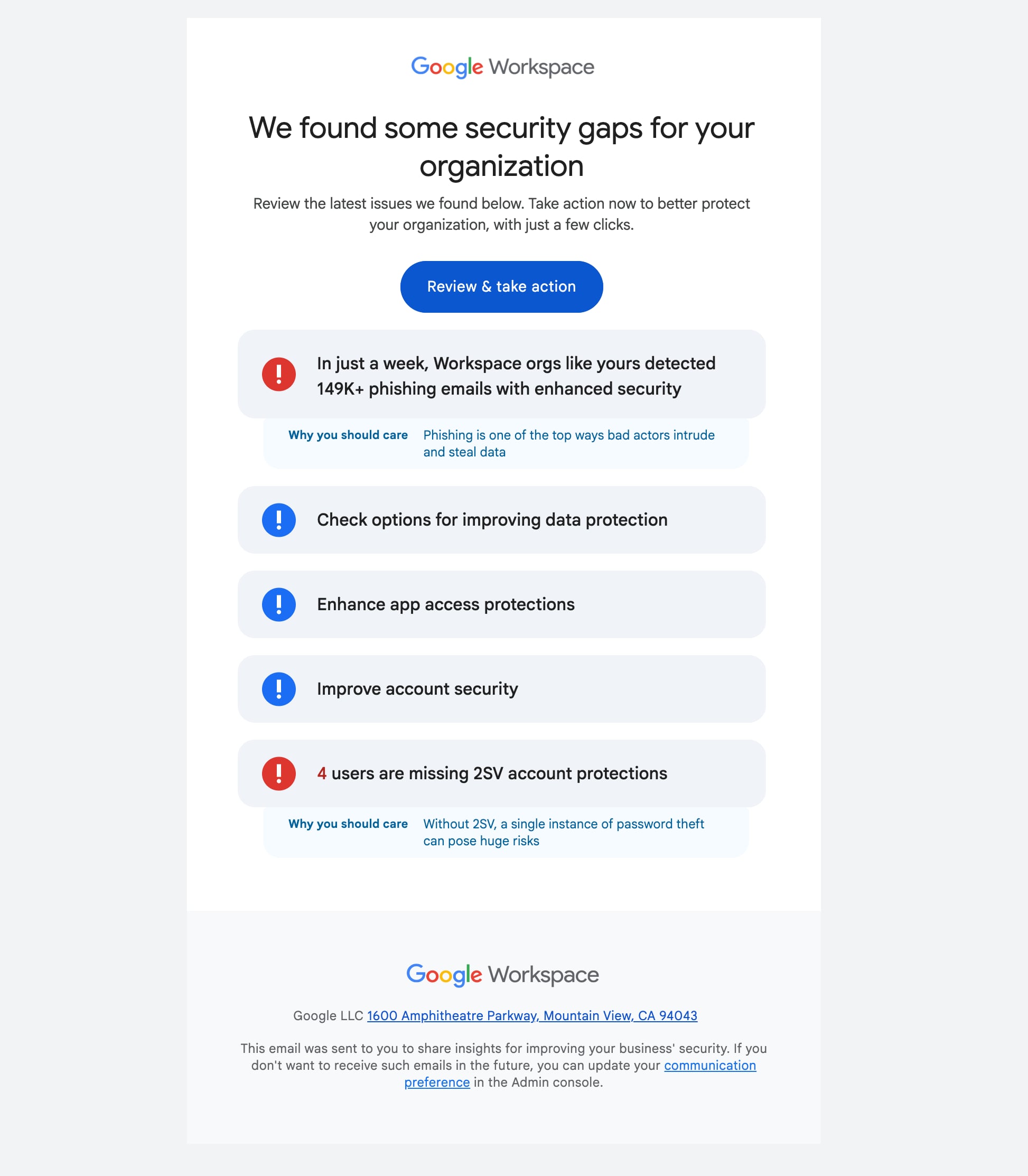
This email is your cue to do a quick review in the Admin console and check the essentials. Plan about 45–60 minutes for the initial settings review. Start with 2‑Step Verification and recovery options. They deliver the biggest gains.
Why this matters
Phishing is a top attack method. In the notice above, Google reports that organizations detected 149K+ phishing emails in a single week. One stolen password can expose mail, files, calendars, and shared drives. The good news is you can reduce risk quickly with a few simple settings.
Time to complete: about 45–60 minutes for most small teams (settings review). Full rollout varies with DNS and user enrollment.
Note: These steps assume you can sign in to the Admin console and locate basic settings.
Small-Business Essentials
Start here. These seven moves are fast and high impact. Most teams can complete the settings review in about 45–60 minutes.
1. Turn on 2‑Step Verification. Use strong passwords.
- Require 2‑Step Verificationfor admins and key users first. Expand to all users when ready.
- Google is starting to require2‑Step Verification (2SV) on all admin accounts, rolling out gradually. Workspace for Nonprofits is already included. Admins who don’t enroll during the notice period lose access, and they can’t opt out. Turn it on now so it happens on your schedule.
- Use unique passwords. Do not reuse business passwords on other sites.
- Where to set 2SV: Admin console → Security → Authentication → 2‑Step Verification.
- Outcome: Accounts stay secure even if a password leaks.
2. Recovery ready
- Add recovery phone and email for admin accounts.
- Generate and print backup codes. Store them securely. Once 2SV is required, a lost phone can lock an admin out. Backup codes let them get back in.
- Create a dedicated Super Admin account for admin tasks. Do daily work with a regular user account.
- Create an additional super admin account managed by a second person, such as your website support specialist or IT provider.
- Related: Keep Access to Your Google Assets When Moving Email
- Outcome: You can recover access quickly during lockouts.
3. Safer Gmail defaults
- Turn on enhanced pre‑delivery message scanning. Where: Apps → Google Workspace → Gmail → Spam, Phishing and Malware.
- Turn on advanced phishing and malware protectionfor attachments and links. Where: Apps → Google Workspace → Gmail → Safety.
- Outcome: Bad messages get flagged or blocked before users act on them.
4. Email deliverability
- Set up SPF, a DNS record that lists which servers can send email for your domain. This reduces bounces and spam flags.
Where: add a TXT record at your domain host (where your DNS is managed). If you only send from Google Workspace, the value isv=spf1 include:_spf.google.com ~all. If tools like Mailchimp or your website also send email for your domain, add them to the same record. - Turn on DKIMso receiving servers can confirm your mail really came from you.
Where: Admin console → Apps → Google Workspace → Gmail → Authenticate email. Generate the key, add it to your DNS, then click Start authentication. New to Workspace? Wait 24–72 hours after setting up Gmail before generating the key. - Why both: When you email someone with a Gmail address, Gmail now rejects your message, or sends it to spam, if it doesn’t meet Google’s sender requirements. Google recommends setting up SPF, DKIM, and DMARC for every domain.
- Note: DNS changes can take up to 48 hours to take effect. To check, send a test email to a personal Gmail address. Open it there, click ⋮ → Show original, and look for “SPF: PASS” and “DKIM: PASS.”
- Outcome: Legitimate email is trusted and reaches inboxes more reliably.
5. Calendar sharing
- Restrict external calendar sharing to free/busy only.
- Where to set: Admin console → Apps → Google Workspace → Google Calendar → Sharing settings. Set External sharing to Free/busy only.
- Outcome: External viewers see availability, not event details.
6. Drive sharing defaults
- My Drive: New files are private until shared; files in shared folders inherit that folder’s access.
- Shared drives: Files inherit the drive’s permissions; manage access at the drive level.
- External sharing: OFF blocks sharing outside your org; ON allows it with a warning before sharing (recommended for most small teams).
- Where to set: Admin console → Apps → Google Workspace → Drive and Docs → Sharing settings. Set “Sharing outside your organization” to OFF or ON; if ON, turn on “Warn when files are shared outside your organization.” Set “General access default” to “Private to the owner.”
- Outcome: OFF prevents external shares; ON with warning allows them while reducing accidental oversharing.
7. Fewer super admins, safer devices
- Reduce super admins and give people only the admin access they need. Use a separate Super Admin account only for changes, then sign out.
- Keep Chrome and browsers auto‑updating to get security patches quickly.
- Outcome: Less damage if an admin account or device is hacked.
Level up later
- Enable DMARC to tell other email providers what to do with mail that fails SPF or DKIM. Start in monitoring-only mode (p=none), which only sends you reports, and review them before blocking anything.
- Turn on admin alerts for risky changes, like someone turning off 2SV, forwarding email elsewhere, or connecting outside apps.
Implementation notes
Assumption: You have access to, and are familiar with, the Google Workspace Admin console.
Note on timing: About 45–60 minutes covers a focused settings review in the Admin console for small teams. Full rollout can take longer:
- SPF and DKIM DNS changes may take up to 48 hours to take effect.
- 2‑Step Verification requires user enrollment, which can add hours or days depending on team size.
- Reviewing existing Shared drives and external shares can add time for larger or complex setups.
Need help?
For existing Webmarks clients, I offer a flat‑rate Google Workspace Security Essentials setup for small teams: $195 CAD plus GST for a focused settings review, up to 90 minutes.
This includes setup, verification, and time for questions. It covers 2‑Step Verification policy, Gmail protections, safer sharing defaults, SPF, and DKIM. Additional work, like user enrollments, DMARC, and shared‑drive audits, is billed at my standard hourly rate.
Non‑profits: $145 CAD plus GST for up to 90 minutes. Same scope and deliverables.
Contact me for more information or to schedule a time.
Otherwise, share this checklist with your IT service provider.
Resources
- Google Workspace: Security checklist for small businesses (1–100 users)
- Google Workspace: Security best practices for administrator accounts
- Security Center: Prevent, detect, and remediate security threats
- Alert Center: View and manage alerts in the alert center